Friday, November 7, 2014

Customizing webcenter pages programmatically

Webcenter provides a very nice way to edit page at runtime using Ctrl+Shift+E.

Still it might be a bit difficult for end user (admin) to show/hide certain section of a page. For example if we have header, body and footer section on a page. To show/hide header or footer on a page at runtime, admin can follow these steps
1. Hit ctrl+shift+e
2. Change the page mode to source
3. Select appropriate component
4. Click edit button 
5. A new popup appears on which admin can select checkbox show/hide


But at times customer wants some quick easy options to show/hide these prominent areas. For example when admin hits ctrl+shift+e we may want to show him two checkboxes to show/hide header and footer. He just needs to check/uncheck them to show/hide these areas.Yes this approach will not be good if admin wants ability to show/hide each component but most of the time customer is just interested in show/hide prominent areas like header/left menus/ right boxes/footer etc.

In this blog I want to show how to create custom UI to show/hide (or do any kind of customization) ui components. Let us list down our requirements first
1. On ctrl+shift+e we need to show a checkbox to show/hide footer section. Checkbox should only be visible in ctrl+shift+e mode.
2. Check box should be checked by default if footer section is visible and uncheck if footer section is not visible.
3. If user checks to checkbox footer should become visible immediately. Similarly on uncheck footer section should become invisible immediately.
4. Any changes done by this approach should be saved as customization and should retain its value post login/logout


Now lets start working on these requirements

A) Initial page design: 

To enable page customization we need to have page-customizable component on page. Security of page should be set appropriately so that admin can edit page. Let say initial structure of page is as shown in below diagram

B) Bind footer section with bean:


C) Adding a section on page to have checkbox to show/hide footer

Now we want to add a section in which we will add checkbox to show/hide footer section. Add a panel group on page above header section as shown below


D) Corresponding bean code

To set initial value of checkbox:


To perform actual MDS operation on selecting/unselecting checkbox.

On check/uncheck we can validate MDS file and see if its entry is getting changed.

=======================================

Conclusion: Core part of this blog is to show api to programmatically customize a page and modify MDS entry. We can use it for endless opportunities.

Disclaimer: Any views or opinions presented in this blog are solely those of the author and do not necessarily represent those of the company.

ADF Tree: Searching child nodes using af:query panel

Problem Description:
We all know how to create a ADF table and provide a query panel for that table. Even we can create a query panel for ADF Tree but it only works with parent most VO. For example if we have Department/Employee tree we can provide a query panel that search only on department. At times we may want to include few employee related attributes like JOB on search panel and when user search based on JOB we just want to show those employees having same Job. By this way filtering is on child nodes and not on parent nodes.

In this blog I will be creating a tree showing department and employee. I will be creating a search panel with Department and Job field. When user search based on department, system will filter department nodes and when user search based on employee, system will filter employee nodes.

We will perform following steps
1. Create Department/Employee VO with a view link and create normal search panel
2. Add Employee Job field in search panel
3. Search Employee rowsets based on Job


1. Create Department/Employee VO with a view link and create normal search panel: This step is simple one and we all know how to create normal search panel. Here are the steps
      a. Create view object DepartmentVO (have department-id as primary key)
      b. Create view object EmployeeVO
      c. Create view link DepartmentVOToEmployeeVO. (Join based on department-id)
      d. Create a view criteria "search" in DepartmentVO and select Department-Name as view-criteria-item.
      e. Add DepartmentVO and EmployeeVO in AM using view link.
      f. Drag view-criteria from data control and drop it on page to create a search panel with adf tree.

At the end of this step you should be ready with a normal search panel on Department-Employee Tree. Search field is just department-name and when user enters department-name system filters Department (parentvo). Within department all employees are visible.

2. Add Employee Job field in search panel: Follow these steps to do it

  a. Create a transient attribute JobId in DepartmentVO (NOTE: Its DepartmentVO no EmployeeVO)


  b.  Include this attribute in search view-criteria


   Now if you run the page, you will see a new field JobId but it would not do anything at this time. We will make it working in next step.


3. Search Employee rowsets based on Job
Follow these steps

  a. Write following java method in AMImpl.java

        /**
     * This method is used to execute childrowset of employeevo based on job-id mentioned on department vo's view criteria.
     * Logic:
     *   1. Select JobId value/operator from 'search' view criteria of DepartmentVO
     *   2. Create and apply a new dynamic viewcriteria on employeeVO based on JobId value/operator
     *   3. Iterate of all department rows and find out their employeeVO row-set. Execute that rowset.
     */
    public void queryDepartment(){
        ViewObjectImpl deptVO = this.getDepartmentVO1();
        ViewCriteria vc = deptVO.getViewCriteria("search");
        ViewCriteriaRow vcr = (ViewCriteriaRow)vc.get(0);
        String jobId = (String)vcr.getAttribute("JobId");
        String operator = vcr.getOperator("JobId");

       
        if(deptVO.first() != null){
            ViewObjectImpl empVO = (ViewObjectImpl) ((RowSet)deptVO.first().getAttribute("EmployeeVO")).getViewObject();
           
           
             ViewCriteria vc1 = empVO.createViewCriteria();
             ViewCriteriaRow vcRow1 = vc1.createViewCriteriaRow();
            
             vcRow1.setAttribute("JobId", jobId);
             vcRow1.setOperator("JobId", operator);
             vc1.addRow(vcRow1);
            
             empVO.applyViewCriteria(vc1);
        }
       
        RowSetIterator rsi = null;
        try{
            rsi = deptVO.findRowSetIterator("iter");
            if(rsi == null){
                rsi = deptVO.createRowSetIterator("iter");
            }
            rsi.reset();
            while(rsi.hasNext()){
               Row row = rsi.next();
              RowSet empRs = ((RowSet)row.getAttribute("EmployeeVO"));
               empRs.executeQuery();
                             
            } 
            }finally{
            if(rsi != null){
                rsi.closeRowSetIterator();
            }
        }
       
    }


   b. Expose this method to client


   c. Create a method action binding for this exposed method in pageDef file.


    d. Create a bean for page and register it in backing bean scope


   e. Write a method in searchEmployeeAndDepartment in SearchBean.java. It should perform following tasks

  •          execute department search programmatically.
  •          call AM method queryDepartment which executes all rowsets of employee VO
  •          refresh tree ui component


 Code of  SearchBean.java should look like

import java.util.Map;
import javax.el.ELContext;
import javax.el.ExpressionFactory;
import javax.el.MethodExpression;
import javax.el.ValueExpression;
import javax.faces.application.Application;
import javax.faces.context.FacesContext;
import oracle.adf.model.binding.DCBindingContainer;
import oracle.adf.view.rich.component.rich.data.RichTree;
import oracle.adf.view.rich.component.rich.data.RichTreeTable;
import oracle.adf.view.rich.context.AdfFacesContext;
import oracle.adf.view.rich.event.QueryEvent;
import oracle.binding.BindingContainer;
import oracle.binding.OperationBinding;

public class SearchBean {

    private RichTree deptTree;

    public SearchBean() {
        super();
    }


    public void searchEmployeeAndDepartment(QueryEvent queryEvent) {
        // Add event code here...
        FacesContext fctx = FacesContext.getCurrentInstance();
                ELContext elctx = fctx.getELContext();
                Application app = fctx.getApplication();
                ExpressionFactory exprFactory = app.getExpressionFactory();
              
                MethodExpression methodExpr = exprFactory.createMethodExpression(elctx, "#{bindings.searchQuery.processQuery}", Object.class, new Class[] {QueryEvent.class});
         methodExpr.invoke(elctx, new Object[] {queryEvent});
        
         this.executeOperationBinding("queryDepartment", null);
        
        AdfFacesContext adfFacesContext = AdfFacesContext.getCurrentInstance();
        adfFacesContext.addPartialTarget(deptTree);
    }
   
    public static Object executeOperationBinding(String methodAction,
                                                               Map param) {
       
            OperationBinding ob =  getDCBindingContainer().getOperationBinding(methodAction);

            if (param != null) {
                Map paramOps = ob.getParamsMap();
                paramOps.putAll(param);
            }
            Object result = ob.execute();
            return result;
        }
   
    /**
        * Return the Binding Container as a DCBindingContainer.
        * @return current binding container as a DCBindingContainer
        */
       public static DCBindingContainer getDCBindingContainer() {
           return (DCBindingContainer)getBindingContainer();
       }
   
    /**
        * Return the current page's binding container.
        * @return the current page's binding container
        */
       public static BindingContainer getBindingContainer() {
           return (BindingContainer)evaluateEL("#{bindings}");
       }
   
    /**
    * Programmatic evaluation of EL.
    *
    * @param el EL to evaluate
    * @return Result of the evaluation
    */
    public static Object evaluateEL(String el) {
        FacesContext facesContext = FacesContext.getCurrentInstance();
        ELContext elContext = facesContext.getELContext();
        ExpressionFactory expressionFactory =
        facesContext.getApplication().getExpressionFactory();
        ValueExpression exp =
        expressionFactory.createValueExpression(elContext, el,
        Object.class);
   
        return exp.getValue(elContext);
    }


    public void setDeptTree(RichTree deptTree) {
        this.deptTree = deptTree;
    }

    public RichTree getDeptTree() {
        return deptTree;
    }
}


   f. Bind tree with bean's deptTree property


   g. Change af:query's querylistener and point it to searchEmployeeAndDepartment method of bean.


That's it. You can run your page now. You should see following result


The logic is
1. On search button click execute a bean method
2. Bean method will excute department search as normal
3. Bean method will also call AM method which will execute each employee rowsets based on Job-id
4. Bean method will refresh tree component.


Few things that we can try
a. Do not execute all row-set of employee vos but only those which are already open. Yes set criteria in all row-sets so that if user opens other, criteria is applied.

b. If we only specify JobId and there are departments which does not have employee with that job, we should not be showing those departments. We can use Exist operator (view-link) in DepartmentVO for that but we need to change AM code to refer job-id from nested row. Planning to implement it in next blog.

Disclaimer: Any views or opinions presented in this blog are solely those of the author and do not necessarily represent those of the company.

Monday, September 15, 2014

REST: Adding JSON support using jackson on weblogic 10.3.4

In my previous blog http://sanjeev-adf-webcenter.blogspot.in/2014/09/rest-service-on-weblogic-1034.html I showed how to create a RESTful service on weblogic 10.3.4

In this blog I am going to show how to provide JSON response from webservice using jackson apis.

jackson libraries are used to convert a JSON message into a java object and also java object to a JSON message.

We need to follow these steps
1. Configure weblogic for jackson libraries
2. Add jackson libraries to jdev project
3. Write pojos which needs to be exposed as JSON
4. Write service method and configure web.xml with Jersey servlet
5.  Deploy project on weblogic
6. Test

===================================================
1. Configure weblogic for jackson libraries

 Similarly as in previous blog we have added jersey libraries as a shared libraries in weblogic, this time we need to add jackson libraries. These libraries are available under $WL_HOME/common/deployable-libraries
 We need to add jackson-core-asl, jackson-jaxrs, jackson-mapper-asl libraries. For detail steps about how to add libraries see blog 'http://sanjeev-adf-webcenter.blogspot.in/2014/09/rest-service-on-weblogic-1034.html'


2. Add jackson libraries to jdev project

 For design time support of jackson libraries we need to add jackson libraries to our project.
 Follow these steps
a. Navigate to project properties > Library and classpath
b. Add Library 'JAX-RS Jersey Jacson (Bundle)' as shown below


For runtime support configure weblogic.xml so that code can refer to shared libraries of weblogic that we have installed in first step.


3. Write POJOs which needs to be exposed as JSON

As I said earlier jackson libraries can be used to convert java objects to JSON message and vice versa. We need to create POJO objects which needs to be represented in JSON. In this example I am creating employee and address pojos as shown below

Employee.java
package com.san.rest.entity;
import java.util.List;
public class Employee {
    private Long empId;
    private String name;
    private List addresses;   
    public Employee() {
        super();
    }

    public void setEmpId(Long empId) {
        this.empId = empId;
    }
    public Long getEmpId() {
        return empId;
    }
    public void setName(String name) {
        this.name = name;
    }
    public String getName() {
        return name;
    }
    public void setAddresses(List addresses) {
        this.addresses = addresses;
    }
    public List getAddresses() {
        return addresses;
    }
}

Address.java
package com.san.rest.entity;

public class Address {
    private Long addressId;
    private String addressType;
    private String line1;
    private String line2;
    private String city;
    private String state;
    private String country;
    private String zipCode;
    public Address() {
        super();
    }

    public void setAddressId(Long addressId) {
        this.addressId = addressId;
    }

    public Long getAddressId() {
        return addressId;
    }

    public void setAddressType(String addressType) {
        this.addressType = addressType;
    }

    public String getAddressType() {
        return addressType;
    }

    public void setLine1(String line1) {
        this.line1 = line1;
    }

    public String getLine1() {
        return line1;
    }

    public void setLine2(String line2) {
        this.line2 = line2;
    }

    public String getLine2() {
        return line2;
    }

    public void setCity(String city) {
        this.city = city;
    }

    public String getCity() {
        return city;
    }

    public void setState(String state) {
        this.state = state;
    }

    public String getState() {
        return state;
    }

    public void setCountry(String country) {
        this.country = country;
    }

    public String getCountry() {
        return country;
    }

    public void setZipCode(String zipCode) {
        this.zipCode = zipCode;
    }

    public String getZipCode() {
        return zipCode;
    }
}


NOTE: There is a one to many relationship in these two classes. One employee can have multiple addresses. We have included an instance variable addresses of type List in Employee class.

4. Write service method and configure web.xml with Jersey servlet

 Create new class EmployeeService in package com.san.rest.service
 NOTE: This package is already configured to have Jersey service classes in previous blog. It is done by creating entry in web.xml. See previous blog http://sanjeev-adf-webcenter.blogspot.in/2014/09/rest-service-on-weblogic-1034.html

EmployeeService.java
package com.san.rest.service;

import com.san.rest.entity.Address;
import com.san.rest.entity.Employee;
import java.io.IOException;
import java.io.StringWriter;
import java.util.ArrayList;
import java.util.List;
import javax.ws.rs.GET;
import javax.ws.rs.Path;
import javax.ws.rs.Produces;
import javax.ws.rs.core.MediaType;
import org.codehaus.jackson.JsonGenerationException;
import org.codehaus.jackson.map.JsonMappingException;
import org.codehaus.jackson.map.ObjectMapper;


@Path("employee")
public class EmployeeService {
    public EmployeeService() {
        super();
    }
   
    // To generate json
    @GET
    @Produces(MediaType.APPLICATION_JSON)
    public String getEmployeeDetails() {
       
                                                  
        Address a1 = new Address();
        a1.setAddressId(1L);
        a1.setAddressType("PERMANENT");
        a1.setLine1("Flat 1 ABC appartment");
        a1.setLine2("3rd Cross 1st Mian, MG Area");
        a1.setCity("Delhi");
        a1.setCountry("India");
        a1.setZipCode("00000");
       
        Address a2 = new Address();
        a2.setAddressId(2L);
        a2.setAddressType("CORRESPONDANCE");
        a2.setLine1("Flat 2 XYZ appartment");
        a2.setLine2("9th Cross 1st Mian, MG Area");
        a2.setCity("Bangalore");
        a2.setCountry("India");
        a2.setZipCode("99999");
       
        List addrList = new ArrayList();
        addrList.add(a1);
        addrList.add(a2);
       
        Employee e1 = new Employee();
        e1.setEmpId(1L);
        e1.setName("Sanjeev");
        e1.setAddresses(addrList);
       
        StringWriter output = new StringWriter();                                          
        ObjectMapper mapper = new ObjectMapper();
        try {
            mapper.writeValue(output, e1);
           
        } catch (JsonGenerationException e) {
            throw new RuntimeException("JsonGenerationException: " + e.getMessage());       
        } catch (JsonMappingException e) {
            throw new RuntimeException("JsonMappingException: " + e.getMessage());
        } catch (IOException e) {
            throw new RuntimeException("IOException: " + e.getMessage());
        }
       
        return output.toString();
    }

}


Important parts of this class are
a. Import of jackson classes: These classes are available from jackson libraries that we have added in project.
b. @Path("employee"): It means we need to add /employee in our url while calling this service
c. @GET: It means a get service
d. @Produces(MediaType.APPLICATION_JSON): It means response is of type JSON
e. Populate Employee/Address objects: As this is just a demo to show JSON response, I have created employee/address object inside service method itself but in general I would like to call a utility method or EJB session bean to provide me data about Employee/Address objects
f.  mapper.writeValue(output, e1): This method converts employee object e1 into its JSON representation.

Once again we can see our web.xml entry
    <servlet>
        <display-name>Rest Jersey Application</display-name>
        <servlet-name>RestJerseyApp</servlet-name>
        <servlet-class>com.sun.jersey.spi.container.servlet.ServletContainer</servlet-class>
        <init-param>
            <param-name>com.sun.jersey.config.property.packages</param-name>
            <param-value>com.san.rest.service</param-value>
        </init-param>
    </servlet>
    <servlet-mapping>
        <servlet-name>RestJerseyApp</servlet-name>
        <url-pattern>/rest/*</url-pattern>
    </servlet-mapping>


5.  Deploy project on weblogic
 Create a war profile and deploy it on weblogic server. Note down context root while creating war profile. Also explained in previous blog http://sanjeev-adf-webcenter.blogspot.in/2014/09/rest-service-on-weblogic-1034.html


6. Test


Disclaimer: Any views or opinions presented in this blog are solely those of the author and do not necessarily represent those of the company.

Wednesday, September 10, 2014

REST service on weblogic 10.3.4

In this blog we will be developing a simple REST service using jdev and deploying it on weblogic 10.3.4.


NOTE: Jdeveloper 12c has better support for REST service creation but in this blog I am using Jdev 11.1.2.4 (or any older version) because I have to deploy these services on weblogic 10.3.4

NOTE: We will be using Jersey reference implementation of jsr311 to create REST services

We will perform following steps
1. Configure weblogic 10.3.4 with Jersey libraries
2. Create a REST service
3. Configure web.xml for REST service resources
4. Configure weblogic.xml to refer shared Jersey libraries
5. Deploy project on weblogic server
6. Access REST service

==================================================================
1. Configure weblogic 10.3.4 with Jersey libraries:

We get Jersey libraries with weblogic but they are not by default installed so we need to install them ourself.
Jersey libraries are available at $WL_HOME/common/deployable-libraries
Install jersey-bundle-1.1.5.1.war, jsr311-api-1.1.1.war on weblogic server as a Shared libraries.
Follow these steps for installing libraries (one at a time)
a. Launch weblogic console http://<server>:<port>/console
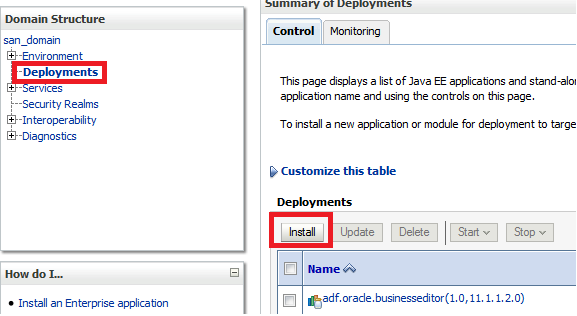
b. Navigate to Deployments
c. Click on Install
    
d. Select jersey-bundle-1.1.5.war
    
e. Select 'Install this deployment as library'
   
f. Select server on which you want to deploy this library. Note you can deploy rest service on same server. I am selecting 'Admin Server' so while deploying I can deploy REST service only on 'Admin server'. Admin server serves request from port 7001, which I need to use while accessing service.
  
f. Click Next Next and finish on rest of the pages.


Similarly install jsr311-api.war


2. Create a REST service

Next we need to create a simple REST service
Follow these steps to create REST service

a. Create an application/project.
    If you don't have an application/project already, create it.
    Create custom application/project.


b. Add Jersey library to project


c. Create a new java class to represent a resource
    REST stands for 'Representational State Transfer'. Actually we are transferring a resource between client and server. Every resource can be represented by structure (XML, HTML, TEXT, JSON) etc. We just want to transfer that representation of resource using REST service.

   Create a java class as shown below
   package com.san.rest.service;
import javax.ws.rs.GET;
import javax.ws.rs.Path;
import javax.ws.rs.Produces;
import javax.ws.rs.core.MediaType;


@Path("helloworld")
public class HelloWorld {

  // To generate plain text
  @GET
  @Produces(MediaType.TEXT_PLAIN)
  public String helloInPlainText() {
    return "Hello! How are you?";
  }

  // To generate xml
  @GET
  @Produces(MediaType.TEXT_XML)
  public String helloInXML() {
    return "<?xml version=\"1.0\"?>" + "<welcomeMsg> Hello! How are you?" + "</welcomeMsg>";
  }

  // To generate html
  @GET
  @Produces(MediaType.TEXT_HTML)
  public String helloInHTML() {
    return "<html> " + "<title>" + "Hello" + "</title>"
        + "<body><h1>" + "How are you?" + "</body></h1>" + "</html> ";
  }

}

3. Configure web.xml for REST service resources
  
a. Create web.xml (Java EE deployment descriptor) for your project.
     New > Search for 'Java EE Deployment Descriptor'
     Follow wizard
    

b. Add following entry in web.xml file
NOTE: There are other ways also to specify resource classes to jersey. For example using init parameter javax.ws.rs.Application, but I believe using com.sun.jersey.config.property.packages parameter is easiest way. 

NOTE: If you have service resource in multiple packages specify value as 
  <param-value>pkg1;pkg2;pkg3</param-value>

4. Configure weblogic.xml to refer shared Jersey libraries

   a. Create weblogic deployment descriptor (weblogic.xml) file
       New > Search for 'Weblogic Deployment Descriptor'


b. Add shared libraries in weblogic.xml file


5. Deploy project on weblogic server

a. Set context root for your project
 b. Create WAR deployment profile
   Project Properties > Deployment Profile > New (War deployment profile)
  

c. Deploy project on weblogic server
     Now deploy project on weblogic server as normal war file.
      You can create app server connection in resource palate and then right click on project and deploy
      OR alternatively you can deploy war file first and then deploy it using weblogic console

 
6. Access REST service 

You can access service as http://<server>:<port>/<context-root>/<url-pattern>/<path>

server: weblogic server host
port: weblogic server port
context-root: defined in step 5. myrestservice in our case
url-pattern: defined in web.xml. /rest in our case
path: defined as @Path annotation in service class. helloworld in our case


Disclaimer: Any views or opinions presented in this blog are solely those of the author and do not necessarily represent those of the company.

Friday, August 15, 2014

WebCenter: Content Presenter and Secured images

In WebCenter we use sitestudio and content presenter to show content from UCM. This blog could be useful for you if you find following behavior
1. Content presenter is not able to show images
2. You are able to see images sometime but not always
3. One browser shows images but other is not able to show
4. You are able to see images but your friend is not or vice versa.

Answer of all these problems lies in they way images are accessed using content presenter.

If we do F12 and see the url of image generated by content presenter, we found that its a direct URL to content server. For example

http://<server-name>:16200/cs/idcplg?IdcService=GET_FILE&dDocName=MY_Image&RevisionSelectionMethod=LatestReleased

This url is directly pointing to content server. Now content server can only give images if either of this is true
1. Image document is public. (Immediate solution but not feasible in for secured images)
2. You are explicitly logged into content server (may in another tab) and you have access to image document. (Cause which is responsible why we see images sometime)
3. You have SSO enabled so that your webcenter session can be used to access content server. (Best solution)

In above three cases you will be able to see image otherwise you would not.

Disclaimer: Any views or opinions presented in this blog are solely those of the author and do not necessarily represent those of the company.

Saturday, August 9, 2014

Jdeveloper and Disk space issue

Recently I was running out of disk space and then I thought of analyzing it. I found that one of my middleware home (which I use frequently) is much bigger than others. WinDirStat shows that there are few hprof files in my middleware-home/jdeveloper/jdev/bin directory, which are taking lots of space. (3GB each around).

hprof files gets generated whenever jvm crashes or jdev shows outofmemory error. All heap information is dumped in hprof file and its size is generally same as your jdev memory size. That is why they are so huge.

These files can be used to analyze jvm crash but most of the time we are not interested in that untill its happening too frequently. We can delete them safely, which should give us lots of disk space back.


Another thing you may want to change it system directory location from C drive to some other location. For that you can set JDEV_USER_DIR environment variable. 

Disclaimer: Any views or opinions presented in this blog are solely those of the author and do not necessarily represent those of the company.

Friday, August 8, 2014

ADF Mobile: Issues faced while migrating from 11.1.2.4 to 12.1.3.0

Till 11.1.2.4 it was ADF Mobile and from 12.1.3.0 it is Mobile Application Framework (MAF). In this blog I am just writing few issues that I have faced while migrating one of my ADF mobile (11.1.2.4) project to MAF.

====================================================================
Issue 1:
Error: Unable to copy to output directory, D:\<file-path>\ApplicationController\src\META-INF\adfmf-skins.xml not found    ApplicationController.jpr    D:\<file-path>\ApplicationController    ApplicationController.jpr


Error: Unable to copy to output directory, D:\<file-path>\ViewController\src\META-INF\adfmf-feature.xml not found    ViewController.jpr    D:\<file-path>\ViewController    ViewController.jpr

Solution: https://community.oracle.com/thread/3579575
a. Remove .data directory
b. Do a clean build as there is no adfmf-skins.xml. Its changed to maf-skins.xml

====================================================================

Issue 2: Skin (css file) developed in 11.1.2.4 is not picked
Solution: Use version Id with 12.1.3 to define your skins and also to refer oracle provided base skins, which you are extending.
See bottom of this blog to set correct entries of maf-skin.xml and maf-config.xml

====================================================================

Issue 3: Error (Line 22, Column 48): Attribute allowDeviceAccess not defined on element adfmf:featureReference
Solution: remove allowDeviceAccess attribute from maf-application.xml

====================================================================

Issue 4:
Unable to load resource JSON file
/data/data/com.company.AbsenceManagemetn/files/baseProfiles/profile.json
Empty Response
Error: a profile is required to set up the base page

Solution: Problem with skin configuration in maf-skins.xml file. Start using skin versioning
See bottom of this blog to set correct entries of maf-skin.xml and maf-config.xml


====================================================================

Issue 5: KXmlUtil.loadFromXml Unexpected element - HTML Expected schema
Solution: Redeploy apk and use that.

====================================================================

Issue 6: The custom authentication page does not have credentials field.
Solution: This issue only occurs if we have created custom login page in 11.1.2.4 by copying adf-mobile-provided-login-pages-and-js. We need to again copy new login page and customize that as per our need. 


=========================================================
Correct way of extending skins in MAF

Disclaimer: Any views or opinions presented in this blog are solely those of the author and do not necessarily represent those of the company.